

For small teams

Work together.
Keep access under control.

Bring your company logins into one place. Share them with the right people and stop your team from digging through messages for passwords.

Team plan · 5 to 10 seats

Team vault
Design tools••••••••
Client accounts••••••••
Company email••••••••
AK
Anna · adminMark · team member

Shared folders. Clear access rules.

Feature illustration · sample data

Security built in from the ground up.

Explore security
AES-256-GCMData encryption
RSAPublic-key cryptography
Argon2idKey from your master password
Zero-knowledgeYour data stays yours

A risk that comes with everyday work

A small team.
A real risk.

Client accounts, company email, shared tools. Even a team of a few people has logins that would stop work if they were lost. Take care of them before there's a problem.

Micro businesses: 1–9 employees. UK survey, August–December 2025; published in 2026.

01 / Designed for you

Fewer password questions.
More time for actual work.

  • Your team knows where to look.

    Shared folders keep logins for tools, projects, and client accounts organized.

  • Everyone has the access they need.

    Manage group members and permissions for shared data.

  • Every change has a history.

    Check activity and rely on 90 days of company data history.

Features in action

Tools that help your team work more securely.

Take a closer look at the features that meet your everyday needs.

01 / Shared access

Share resources, not password lists.

Add coworkers to the team and decide who can view or edit data. Shared folders stay organized even when the project team changes.

Read more

02 / Change history

Keep the context behind every change to company data.

See who changed an item, when, and which fields were affected. The Team plan keeps 90 days of company data history, so you can get back the context you need.

Read more
Change history
Project emailCompany vault / Client accounts
Current version · Anna Smith
Password••••••••••••Changed

90 days of company data history

Feature preview · sample data

03 / SafetyMeter™ for teams

From spotted risk to a to-do list.

The company SafetyMeter™ gives everyone a shared view of weak, reused, and at-risk passwords. Your team knows right away what to tackle first.

Read more
SafetyMeter™
TeamLast scan: just now
Average strength of your passwords
18 Strong4 Good3 Weak1 Very weak
Weak passwords
UserPasswordsTo fix
AS
Anna SmithTeam member
102
MJ
Mark JohnsonTeam member
91
JL
Julia LeeTeam member
71

A company-wide overview that never reveals anyone's passwords.

Feature preview · sample data

04 / TOTP codes

Password and code. No looking in several places.

Save the TOTP setup in the vault item to generate one-time codes for that service. Getting through the second sign-in step gets easier.

Read more
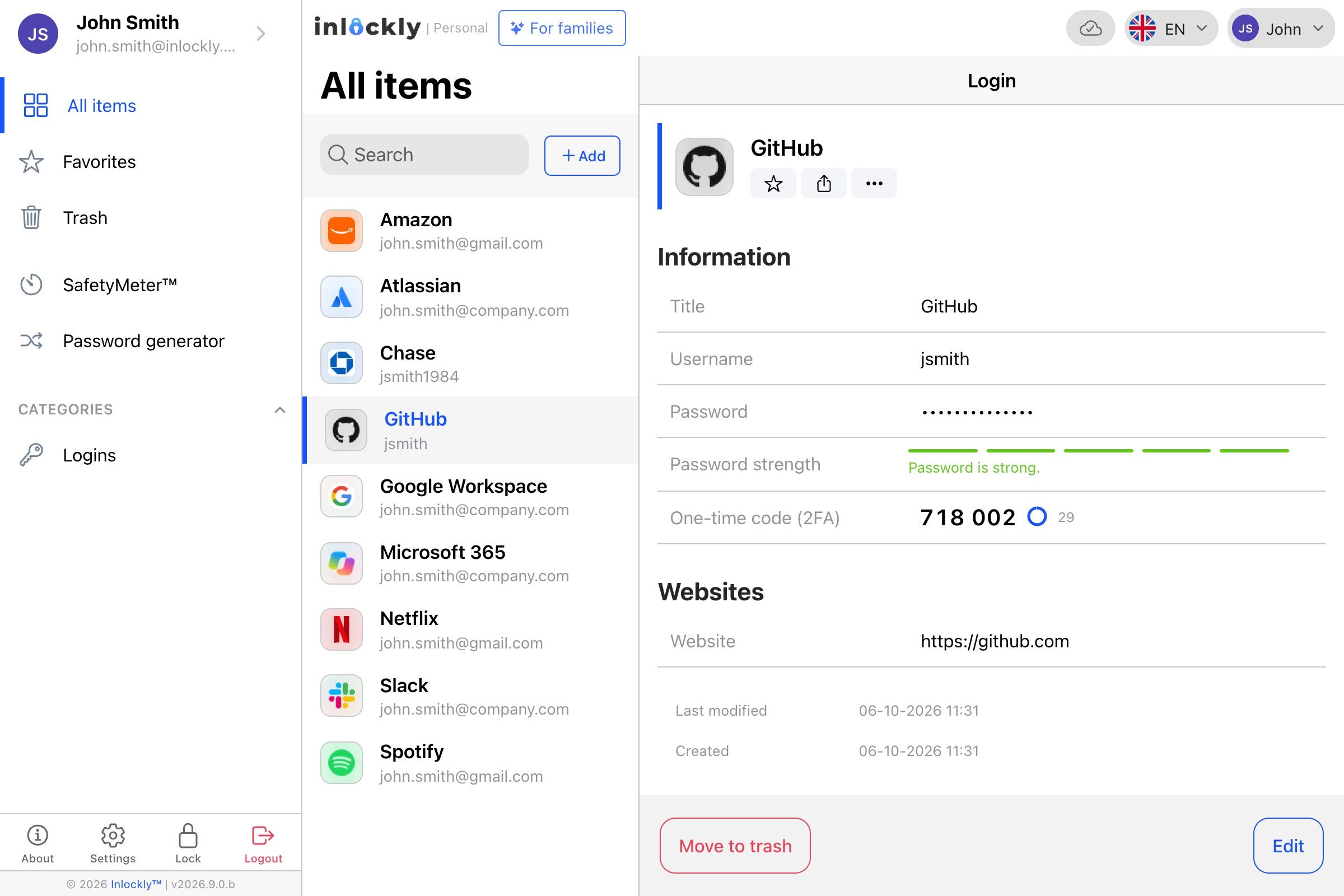
Item details
Email address[email protected]
Password••••••••••••••
One-time code
30
A new code every 30 seconds
Demo code · not valid for sign-in
Feature preview · sample data

05 / MFA and biometrics

An extra step for strangers. Convenience for you.

Protect your Inlockly sign-in with an extra factor. On a supported phone, unlock your vault with biometrics - no retyping your master password every time.

Read more
Account and vault protection
Unlock your vault

Face ID, Touch ID, or fingerprint.
In the supported mobile app.

Simulation · doesn't use your device's biometrics

Feature preview · sample data

06 / Password generator

New account? Start with a strong password.

Create unique passwords for your team's tools and save them straight to the vault. A new service doesn't have to mean another variation of your company name.

Read more
Password generator
n7$Km!4vR9#xP2@z

07 / Autofill

Sign in to work. No retyping.

Pick a saved account from the extension's suggestions. The username and password go into the form, and your team can focus on the task at hand.

Read more
Sample sign-in form

Pick an account from the Inlockly suggestion.

Features shown for the Team plan. See the plan comparison for full availability. Compare plans →

Folders / Team plan

Every project has its own
place. And the right people.

Gather a project's logins and notes in one folder. Add coworkers and choose who can view or edit the data. Everyone knows where to find what they need.

Admin dashboardAdmin
StudioShared team folders
Team
Project 13 people · 3 items

People with access

AS
Anna SmithCoordinator
MS
Mark SmithDesigner
JL
Julia LeeCollaborator

Items in the folder

Client portalclient.example
Login
Project email[email protected]
Login
Project notesInfo for the team
Note
Project 1: only selected people can access these items.
Pick a folder, check what's in it, and try changing someone's permissions.Interactive preview · sample data
Inlockly / Your vault
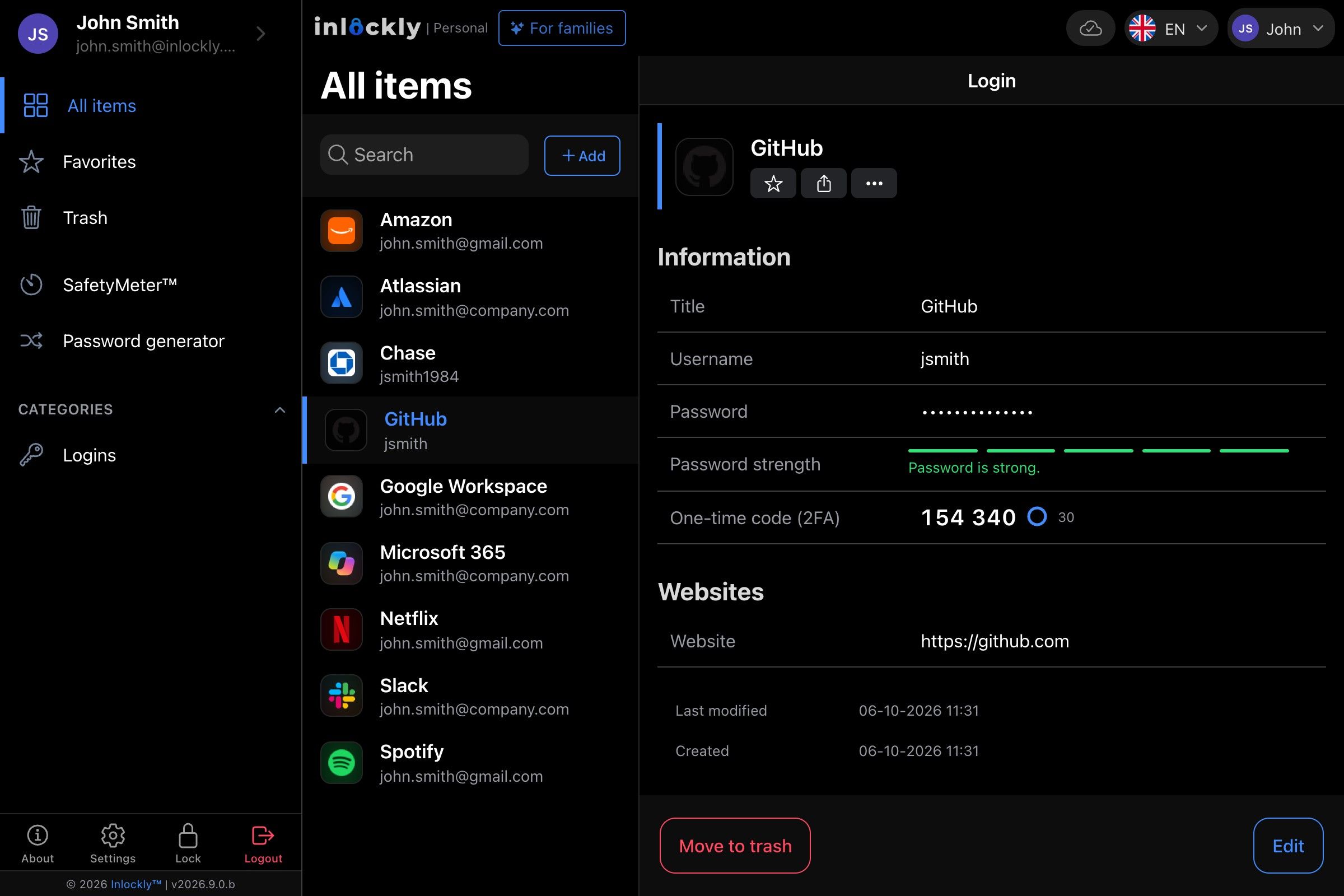
The Inlockly app showing a list of saved itemsThe Inlockly app showing a list of saved items

02 / In everyday use

New project. Access already in place.

Instead of sending yet another list of passwords, organize the project's resources in a shared vault. Your team works from one place, while employees' private data stays separate.

Choose your app

03 / A good start

From the first step to everyday convenience.

  1. Create a team vault

    Choose the plan for 5–10 people and create a group.

  2. Organize shared accounts

    Add logins for your tools and sort them into folders.

  3. Invite your coworkers

    Give team members the permissions they need.

Need some guidance? Talk to us about rollout →

04 / Good to know

Have questions?
Start here.

What size team is this plan for?

The Team plan covers 5 to 10 paid seats. For larger teams, check out the Business plan.

Are private passwords kept separate?

Yes. Each member's private vault stays separate from the data shared in the group.

What do team members get?

The Team plan also includes a private Personal plan for members. See the plan comparison for everything that's included.

Inlockly for teams

Make room for a calmer day.

Team plan · 5 to 10 seats

Explore the Team plan